> For the complete documentation index, see [llms.txt](https://docs.besparks.co/llms.txt). Markdown versions of documentation pages are available by appending `.md` to page URLs; this page is available as [Markdown](https://docs.besparks.co/besparks-crm-gong-neng-mo-zu-shuo-ming/marketing-automation/imgtext-message.md).
# 圖文訊息
圖文訊息可搭配「機器人」模組與「自動回覆」模組一起使用,建立
{% hint style="info" %}
圖文訊息設定完圖文訊息後,請在「機器人」模組內使用「圖文訊息」
設定步驟可參考:[**行銷自動化 - 機器人模組設定**](/besparks-crm-gong-neng-mo-zu-shuo-ming/marketing-automation/chatbot.md)
{% endhint %}
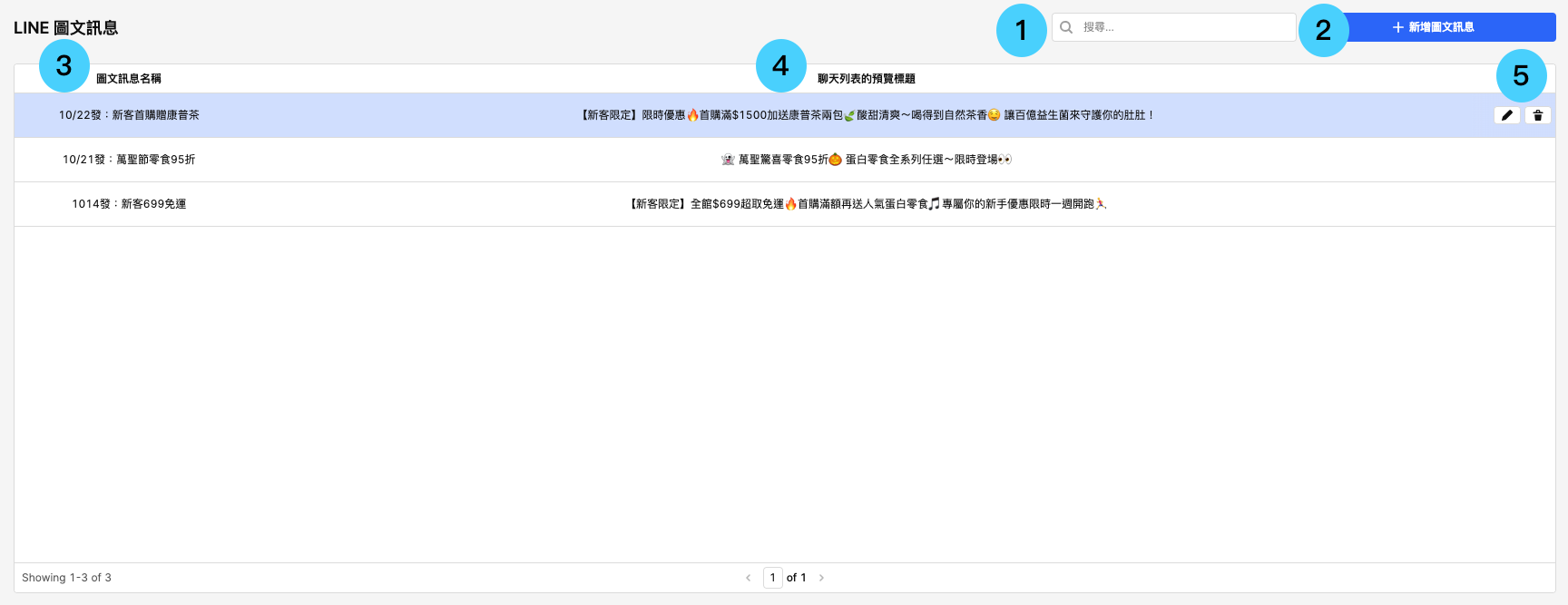 1. **搜尋欄:**輸入「**圖文訊息名稱**」可查找已建立的圖文訊息(輸入完畢後請按**Enter**進行查詢)
2. [**建立新的圖文訊息**](#jian-li-tu-wen-xun-xi)
3. **圖文訊息名稱:**建立後用來搜尋與管理活動內容,前台消費者看不到該名稱
4. **聊天列表的預覽標題:**顧客於Line用戶端收到/觸發消息後,在聊天列表或是通知提醒看到的預覽訊息
5. **編輯 🖊:**修改已儲存的自動回覆\
**刪除 🗑:**刪除已儲存的自動回覆
## **建立圖文訊息**
1. **搜尋欄:**輸入「**圖文訊息名稱**」可查找已建立的圖文訊息(輸入完畢後請按**Enter**進行查詢)
2. [**建立新的圖文訊息**](#jian-li-tu-wen-xun-xi)
3. **圖文訊息名稱:**建立後用來搜尋與管理活動內容,前台消費者看不到該名稱
4. **聊天列表的預覽標題:**顧客於Line用戶端收到/觸發消息後,在聊天列表或是通知提醒看到的預覽訊息
5. **編輯 🖊:**修改已儲存的自動回覆\
**刪除 🗑:**刪除已儲存的自動回覆
## **建立圖文訊息**
 ### 操作步驟
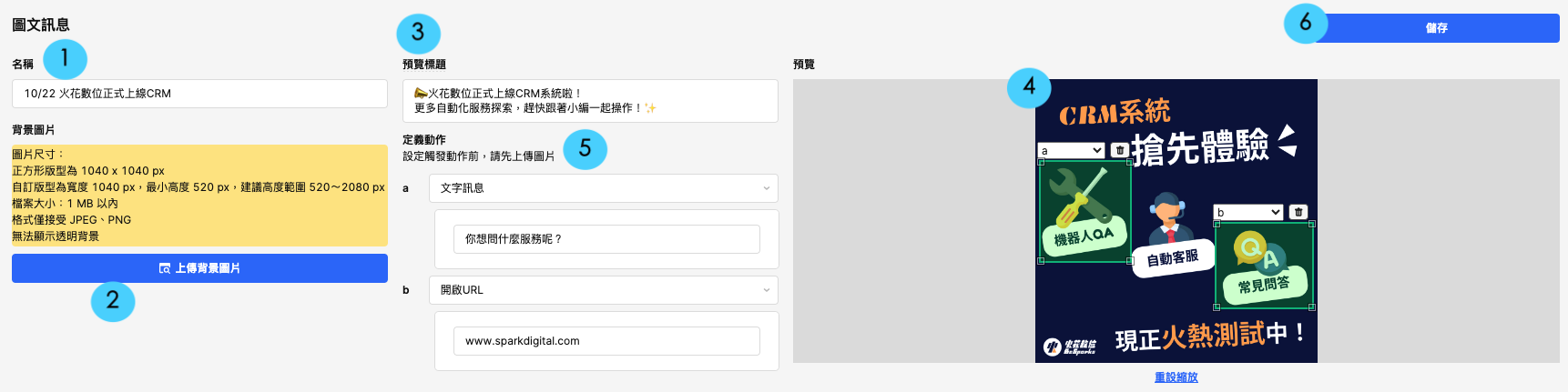
1. 新增圖文訊息名稱(搜尋、管理用)
2. 上傳圖片
{% hint style="info" %}
1. 可上傳的圖片尺寸:
正方形版型為 1040 x 1040 px
自訂版型為寬度 1040 px,最小高度 520 px,建議高度範圍 520~2080 px
檔案大小:1 MB 以內
2. 格式僅接受 JPEG、JPG、PNG,無法顯示透明背景
{% endhint %}
### 操作步驟
1. 新增圖文訊息名稱(搜尋、管理用)
2. 上傳圖片
{% hint style="info" %}
1. 可上傳的圖片尺寸:
正方形版型為 1040 x 1040 px
自訂版型為寬度 1040 px,最小高度 520 px,建議高度範圍 520~2080 px
檔案大小:1 MB 以內
2. 格式僅接受 JPEG、JPG、PNG,無法顯示透明背景
{% endhint %}
.png?alt=media&token=048f3764-da45-4286-b8c2-01e5a69b7b00) 3. **新增預覽標題(**顧客於Line用戶端在聊天列表看到預覽訊息)
4. 在圖上欲觸發動作的地方,拖曳游標新增動作區塊。若要刪除動作區塊,請點選區塊上方的「垃圾桶」icon即可。
3. **新增預覽標題(**顧客於Line用戶端在聊天列表看到預覽訊息)
4. 在圖上欲觸發動作的地方,拖曳游標新增動作區塊。若要刪除動作區塊,請點選區塊上方的「垃圾桶」icon即可。
 若欲更換動作區外塊,可點選區塊上方字母,區塊會根據新指定的字母交換位置。若指定的字母在圖片區域尚未存在,則會根據現有區塊直接複製出新動作區塊。

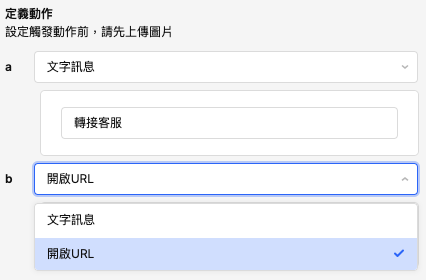
 5. 定義動作:輸入 URL或是文字訊息(目前該模組尚不支持機器人)
* 文字訊息:設定點擊後送出的訊息內容,可與「自動回覆」搭配使用
* 開啟 URL:設定 URL 後,客人點擊該動作會引導到站外。若網址本身不帶UTM訊息,系統將自動帶入bespark CRM系統預設的UTM以利行銷成效追蹤(詳細請參考:bespark CRM 系統 UTM說明)。若綁的連結為短網址,或有另行綁定UTM,則將以用戶自行綁定的UTM為主。
5. 定義動作:輸入 URL或是文字訊息(目前該模組尚不支持機器人)
* 文字訊息:設定點擊後送出的訊息內容,可與「自動回覆」搭配使用
* 開啟 URL:設定 URL 後,客人點擊該動作會引導到站外。若網址本身不帶UTM訊息,系統將自動帶入bespark CRM系統預設的UTM以利行銷成效追蹤(詳細請參考:bespark CRM 系統 UTM說明)。若綁的連結為短網址,或有另行綁定UTM,則將以用戶自行綁定的UTM為主。
 6. 點選右上角「儲存」完成編輯
圖文訊息的使用方式,詳見機器人模組的說明章節:
{% content-ref url="/pages/4ZLtV5Ad2yEJ4dpPZoEC" %}
[機器人模組設定](/besparks-crm-gong-neng-mo-zu-shuo-ming/marketing-automation/chatbot.md)
{% endcontent-ref %}
6. 點選右上角「儲存」完成編輯
圖文訊息的使用方式,詳見機器人模組的說明章節:
{% content-ref url="/pages/4ZLtV5Ad2yEJ4dpPZoEC" %}
[機器人模組設定](/besparks-crm-gong-neng-mo-zu-shuo-ming/marketing-automation/chatbot.md)
{% endcontent-ref %}